Download

Install once with the full client, then use the updater to stay current. No website account needed, you create one in the client on first login.

Updater (existing installs)

Already have the game installed? Download the launcher, unzip it next to Maplestory Null.exe (or Browse to that folder), then click Play. It checks your files and downloads only what changed.

NullLauncher NullLauncher.zip | ~63 MB | 1 exe + readme | Windows x64 | no separate .NET install
Download

Full install (first time)

Both downloads are required. The installer will not work if you only grab the .exe. You need the matching .bin in the same folder, with the filenames unchanged.

Hosted on Google Drive. Total download is about ~18 GB. Google may show a virus-scan page and ask you to click Download anyway once, that is normal for large files.

1. Setup program MaplestoryNull-Setup-0.16a.exe | ~10 MB | right-click -> Run as administrator
Download
2. Installer data MaplestoryNull-Setup-0.16a-1.bin | ~18 GB | keep beside the .exe | do not rename
Download

Last updated: August 14, 2026, Version: v0.16a, Installer: Inno Setup, Updater: NullLauncher

How to install

No website signup. Accounts are created automatically the first time you log in with a new username and password in the client. Pick something you will remember, that becomes your account.
  1. Download both files

    Download MaplestoryNull-Setup-0.16a.exe and MaplestoryNull-Setup-0.16a-1.bin above. You need both. If Google asks, click Download anyway.

  2. Keep both files together

    Make sure the .exe and .bin are in the same folder (Downloads is fine). Do not rename them.

  3. Run the setup as administrator

    Right-click MaplestoryNull-Setup-0.16a.exe and choose Run as administrator. Prefer the Launch NullLauncher option at the end so the client can apply any newer patches. If setup was not run as administrator, the optional Launch checkbox may show an error — that is cosmetic only; start NullLauncher from the Start menu or install folder.

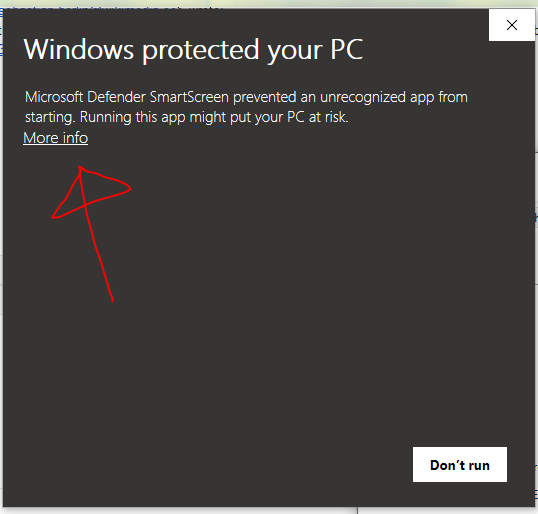
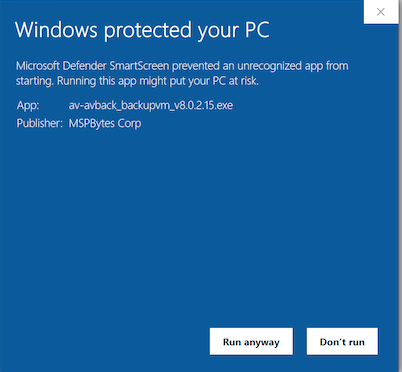
    Trouble? Windows protected your PC

    Windows SmartScreen often blocks our installer because it is not commercially code-signed, normal for Maple private-server clients. If you downloaded from this page:

    1. Click More info
    2. Click Run anyway
    Windows SmartScreen dialog: Windows protected your PC, with More info highlighted
    1. Click More info
    Windows SmartScreen dialog after More info, showing Run anyway button
    2. Click Run anyway
  4. Updater (NullLauncher)

    Fresh 0.16a installs already include NullLauncher.exe in the game folder (Start Menu: NullLauncher (Updater)). On an older install, download NullLauncher.zip, unzip it next to your game exe (or Browse to that folder), then use Play so it pulls whatever the current client-dist is — no need to re-download the full 18 GB installer.

  5. First time running the game

    Launch via NullLauncher (or the Null.Team client). On the login screen, type any username and password you want, if that username does not exist yet, the server creates the account for you automatically. There is nothing to register on the website. Use the same username and password next time. Then make a character, pick a channel, and play. Stuck? Ask in Discord.

Antivirus / no digital signature: Like most Maple private-server clients, our files may not carry a commercial code signature and can trip Windows Defender. That does not mean the official downloads are unsafe, grab them only from this page. Create your game folder first, add a Windows Security exclusion for that folder, then install. Stuck? Ask in Discord.

No website login required. Download, install, then log in with a new username and password in the client to auto-create your account.

After you're in

Jump to rankings, read the latest patch, or skim the newbie path.

Rankings News Guides